We suppose you already have installed WordPress engine on your hosting. If not, please visit WordPress Installation section in our manual. As well, it is very important to have a modern webhosting with actual updated server software. If you don't have hosting, you may choose one of this:
Hostgator,
Bluehost,
Mediatemple,
Siteground,
WPengine. These hostings have maximum compatibility with our themes and using them you will avoid various issues. If you already have hosting, please contact your web hosting service provider to make sure that your server complies with these requirements:
WordPress 4.5 or higher,
PHP 5.6 or higher, and
mysql 5.6 or higher. Such requirements are highly necessary for using this theme.
As a rule, all hosting companies provide their customers with ability to submit a ticket about any issue, besides you may check the "Contacts" section on website of your hosting provider and ask requested information.
Besides we strongly recommend you to check php_value upload_max_filesize and php_value post_max_size. These values should be 32M or higher. If you are running shared web hosting, please contact your web hosting service provider to obtain more information about that. If you are running unmanaged dedicated server or VPS, you should check your php.ini file.
1. To do this, copy the php code below between two lines and paste this code to .txt file named phpinfo.php.
<?php
// Show all information, defaults to INFO_ALL
phpinfo();
?>
2. Change extension of phpinfo.txt file to phpinfo.php
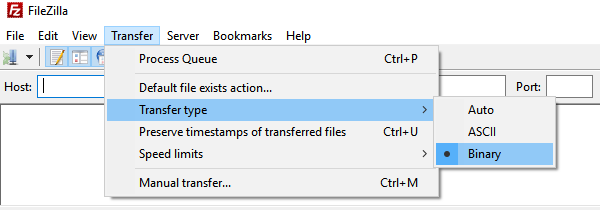
3. Upload phpinfo.php via FTP or File Manager through CPanel to public_html directory using binary mode. In different hostings public_html folder has other accordant name.
4. Then open in your browser the following link: http://your-domain.com/phpinfo.php
5. Here you will see all settings of php.ini file.
6. If you want to know the location of php.ini file, please find the line named Loaded Configuration File in displayed settings php.ini file.
Alternatively, you can edit .htaccess file in the root of your website and add the following values:
php_value post_max_size 32M
php_value upload_max_filesize 32M
php_value max_execution_time 600
Setting these values will ensure you won't get an error reporting that your upload or post memory limit or execution time is too low.
Sometimes hosting companies do not grant access to .htaccess file for their customers. In this case it is necessary to contact your web hosting service provider and ask them to apply the required changes.
Also please check is ZipArchive extension is activated on your hosting:
1. To do this, copy the php code below between two lines and paste this code to .txt file named zipextcheck.
<?php
if (!extension_loaded('zip')) { echo 'ZipArchive extension is not activated';}
else { echo 'ZipArchive extension is enabled';}
exit;
?>
2. Change extension of zipextcheck.txt file to zipextcheck.php
3. Upload zipextcheck.php via FTP or File Manager through CPanel to public_html directory using binary mode. In different hostings public_html folder have other accordant name.
4. Then open in your browser the following link: http://your-domain.com/zipextcheck.php
5. If ZipArchive extension is activated on your hosting, you will see this message: ZipArchive extension is enabled.
6. If ZipArchive extension is not activated on your hosting, you will see this message: ZipArchive extension is not activated.
In case if ZipArchive extension is not activated on your hosting, please contact your Hosting Company in order to activate this extension.